Tracking that's actually accurate.
A two-minute setup before your first session. Calibration tells Surfr exactly how your device orients on the water. Skip it and jump heights drift.
Phone or watch, same six steps.
Calibrate the device that records the session. If you ride with both, calibrate each one separately.
Phone
Profile > Settings > Calibration > Calibrate phone
Watch
On Apple Watch or Wear OS: open Surfr, tap the gear, calibrate.
Each step takes about ten seconds.
The app guides you. Listen for the beep before moving on.
Flat against a level surface
Find a level table with a wall at a 90-degree angle. Place the device flat. Press next and wait for the beep.
Most devices only need this step. If the app confirms calibration, you're done.
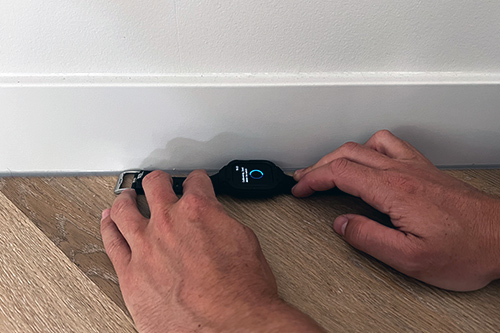
Left side against the wall
Lay the device on its left side against the wall. Keep it straight. Press next and wait for the beep.
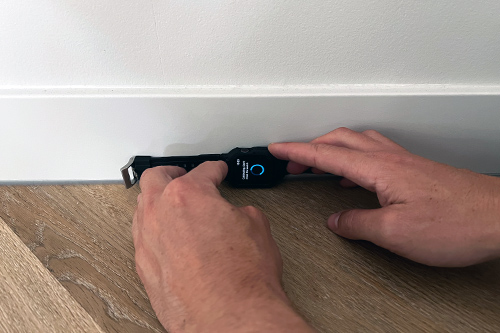
Right side against the wall
Lay the device on its right side against the wall. Same idea, mirrored. Press next and wait for the beep.
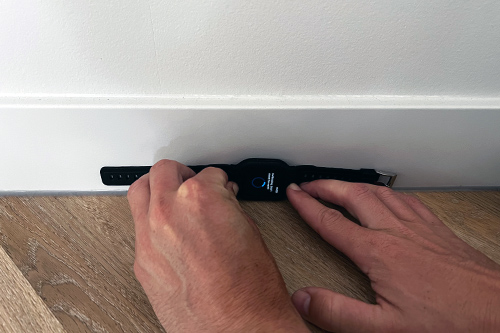
Vertical, screen toward you
Hold the device upright using your fingers for stability. Don't lean it. Press next and wait for the beep.
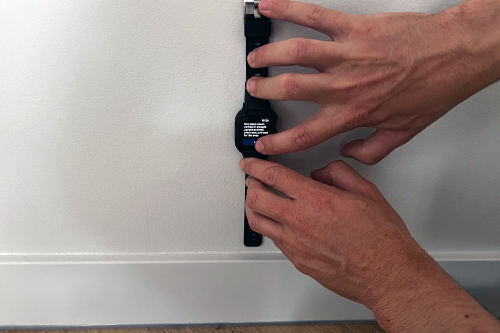
Flip 180 degrees vertical
Rotate the device 180 degrees, still vertical. Press next and wait for the beep.
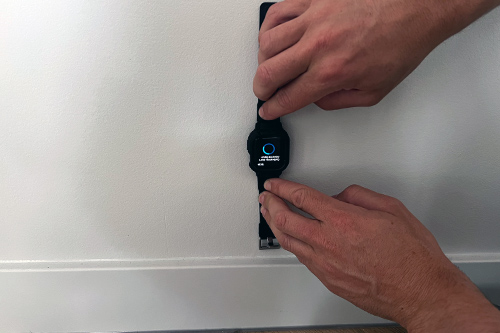
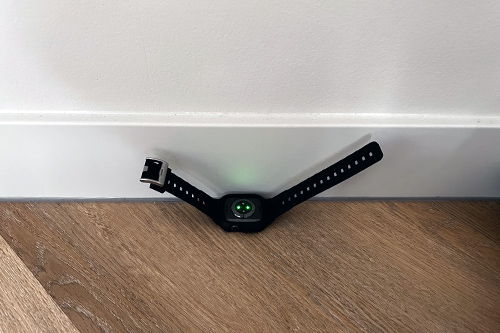
Upside down, flat
Place the device flat, face down. Press next and wait for the final beep. Done.
Get it right the first time.
Small details that make calibration stick.
- Calibrate at home, not on the beach. Wind, sand, and uneven ground will affect the readings.
- A normal coffee table or counter top is fine. The wall needs to be square to the table at 90°.
- Don't hold the device with shaking hands during step 4. Lean it against something stable.
- If a beep doesn't sound after 10 seconds, restart that step.
Frequency error?
If step 1 fails with a frequency error, your device's sensor rate doesn't match what Surfr expects. It's rare, but fixable. Restart your phone, reopen Surfr, and try again. If the error persists, chat with us.